Tips
How to Serve Many Customers at Once With Bumpa POS Without Losing an Order


If you're a business owner in Nigeria, you already know that one of the biggest problems you'll deal with is either network issues or NEPA wahala. Some days, it's both. And no, it's not just you. Over 8 in 10 Nigerian firms experience frequent power outages, according to the World Bank's 2025 Enterprise Survey, and NCC data shows that fibre cuts caused more than half of mobile network outages in the country between April and July 2025. Either way, you end up spending a lot more time offline than online, and that's bad for your business as a whole.
Think about it. How many times has the network gone off right when your shop was full? One customer is ready to pay, another is waiting to be attended to, and your system is just... loading. Some customers wait. Some don't. And at the end of the day, you're trying to remember who bought what from a notebook, or worse, from memory. (If that sounds familiar, here's how to keep daily records of sales the easy way.)
Now, rather than worrying about network issues and NEPA wahala, your best bet is to use a POS system that lets you record sales offline, and that's exactly what Bumpa POS lets you do.
In this article, we'll show you what Bumpa POS is, how to attend to several customers at once without mixing up their orders, and how to keep recording sales even when there's no internet. Let's get into it.
Quick answer: To record sales without internet on Bumpa, use the Bumpa POS mobile app. Its Offline Mode lets you create orders, add customers and complete checkout with no connection. Your sales are saved on your device and sync automatically once you're back online. The browser POS needs internet.
What is Bumpa POS?
If you've never used it before, Bumpa POS is essentially the till for your physical shop. It's where you add the products a customer is buying, take their payment and give them a receipt. And because it's connected to your Bumpa store, every sale you make there shows up in your records.
It comes in two forms:
Web POS: This opens in your browser when you click Point of Sale on your Bumpa dashboard.
Bumpa POS app: A free mobile app you can download on the App Store, and the one you'll need for offline mode (more on that soon).
Want the full tour? Our post on Bumpa POS for businesses in Nigeria covers everything it can do.
How to attend to multiple customers at once without mixing up orders
Be honest, how many times have you mixed up two customers' orders during a rush? Customer A is still deciding between two bags, Customer B just wants to pay for one perfume and leave, and you're trying to handle both at the same time.
The good news is that Bumpa POS was built for exactly this. Here's how it keeps everything in order:
Separate carts: Every customer gets their own cart. On the web POS, click New Checkout to start a new one. On the app, you can keep multiple carts open at the same time.
Customer names: Add the customer's name or phone number to each cart, so you always know which cart belongs to who.
Order numbers: Every order gets its own order number, and the receipt shows the name of the attendant who served the customer.
Receipts: Print or share the receipt at checkout, so every customer leaves with proof of exactly what they bought.
Sales channels: Tag each sale with where it came from, like Physical sales, WhatsApp or Instagram, so your walk-in orders and online orders don't get mixed up. If you sell both in your shop and online, here's
how to sell in your shop and online with one POS
.
How to use Bumpa POS to serve multiple customers at the same time
So what does this look like in real life? Let's say two customers walk into your shop at the same time:
Start a cart for Customer A and add the products they want.
Customer A is still deciding? No wahala. Click New Checkout (or open another cart on the app) for Customer B.
Check out Customer B. When the Add Customer prompt comes up, you can add their details or click Skip and Proceed to Checkout if you're in a hurry.
Go back to Customer A's cart and complete their sale once they've made up their mind.
And that's it. Nobody has to wait for someone else to decide, and nobody ends up paying for someone else's items.
Why Bumpa POS is the best fit for fast checkout during rush hours
If you've ever worked in a busy shop in Nigeria, you know rush hour has its own energy. You've got bulk buyers, some customers paying cash, others paying by transfer, and that one customer who wants a discount because they "always buy from you".
So what makes Bumpa POS a good fit for days like that? Here are a few things:
Finding products fast: You can scan a product's barcode (the app uses your phone camera, so you don't need a separate scanner), search by name or SKU, or tap a collection.
Skipping what you don't need: Adding customer details is optional, and the Cash amount fills in automatically.
Taking any payment: Cash, POS Terminal, Bumpa Terminal, Pay Online (a QR code or payment link) and Gift Card are all available at checkout. Haven't set up gift cards yet? Here's how gift cards, bundles and add-ons can help you make more money per order.
Confirming transfers quickly: Bumpa Terminal lets you and your staff confirm transfers in about 15 seconds, with alerts sent on WhatsApp. When the shop is busy and everyone is rushing, that's what protects you from fake bank alerts
Discounts at the till: Wholesale and B2B pricing apply right in the cart, so you don't need a calculator or any mental maths.
Selling without internet: And when the network goes off, you don't lose sales, because you can keep selling offline. Which brings us to the main gist of this article.
What is Bumpa POS Offline Mode?
Now that we've covered the basics, let's talk about the feature this article is really about.
Bumpa POS Offline Mode essentially lets you keep selling when your internet isn't working. Even without a connection, you can still create orders, add customers and complete checkout on the Bumpa POS app. Every sale you make is saved on your device, and once you're back online, your sales and inventory sync automatically in the background.
What does this mean for you? Your queue keeps moving, and you don't have to write sales in a notebook and enter them into your system later.
Good to know: Offline Mode works on the Bumpa POS mobile app only. The browser POS (the one that opens when you click Point of Sale on your dashboard) needs internet, and if your connection drops while you're using it, you'll see "You're offline. Check your connection and try again." So if the network in your area is unreliable, make the app your main till.
How to record sales without internet on Bumpa POS
Before anything, here's a tip: don't wait until the network goes off to set things up. On a quiet day, while you still have internet, download the Bumpa POS app, sign in and make sure your products are showing.
Once that's done, here's what to do when the network goes off in the middle of a busy day:
Keep the app open and carry on selling: Add products by tapping them, searching by name or SKU, or scanning the barcode with your phone camera.
Add the customer, or skip: Put in their name or phone number if you want it on the order, or skip straight to checkout.
Take payment and complete checkout: Choose the payment method and confirm. (We'll talk about which payment methods to use offline in a bit.)
Give them their receipt: If you have a Bluetooth receipt printer paired, print it as usual.
Move on to the next customer: The cart and customer details clear after every checkout, so you start fresh each time.
And that's it. Every sale you complete is saved on your device until you're back online.
Which payment methods can you use offline?
Now, what if your customer prefers to pay by transfer? This is where Bumpa Terminal comes in. It lets your staff confirm offline payments in about 15 seconds, so nobody has to stand there staring at a "transfer successful" screenshot and wondering if the money actually came in.
What happens when you're back online?
So the network is finally back. What happens to all the sales you made while you were offline? Here's what to expect:
Automatic sync: Your sales and inventory update on their own, so your stock count matches what actually left the shelf. If keeping your stock accurate has always been a struggle, our roundup of the
best inventory management software for small businesses
is worth a look.
Orders that need attention: Take a quick look at your Orders tab. If any orders need your attention, you'll see a banner with a Resolve Orders button to help you sort them out.
Offline sales total: Your dashboard shows Offline Sales as its own total, right beside Total Sales, so you can see exactly how much you sold while you were offline.
Tips to make your busy days easier
Before we wrap up, here are a few things that'll make your busy days run even smoother:
Separate staff logins: Give each staff member their own login. That way, you can filter orders by staff and see who sold what, which also helps if you've ever worried about staff theft in your store
.
Location setup: Bumpa POS runs per location, so if you have more than one branch, set up taxes and terminals for each one. Our guide to managing multiple stores goes into this in more detail.
A paired receipt printer: Keep a Bluetooth receipt printer paired, so printing a receipt takes one tap instead of a scramble.
Frequently Asked Questions
Does Bumpa POS work without internet?
Yes, in the Bumpa POS mobile app. Offline Mode lets you create orders, add customers and complete checkout with no connection, then syncs your sales and inventory once you're back online. The browser POS needs internet.
Can I serve more than one customer at a time on Bumpa POS?
Yes. Click New Checkout on the web POS, or open multiple carts in the app, and add each customer's name or number so the carts are easy to tell apart.
What's the fastest way to check out during rush hour?
Scan barcodes with your phone camera, skip customer details when you're in a hurry, and use Bumpa Terminal so you and your staff can confirm transfers in about 15 seconds.
Is Bumpa POS free?
The Bumpa POS app is free to download on the App Store for iPhone and iPad. For what comes with each Bumpa plan, see what's free and what's paid on Bumpa.
Get ready before your next busy day
Black Friday is around the corner, and you already know what that means: more customers, longer queues, and a network (or NEPA) that always seems to pick the worst time to go off.
So why wait for that moment to find out how your shop will cope? Download the Bumpa POS app this week, sign in, check your products, pair your printer and try a test sale. That way, when the queue builds up and the network goes off, you just keep selling.
Related Articles
View Related Articles Here

Features
How to Improve SEO for Your Bumpa Website in 14 Steps

Tips
How to Serve Many Customers at Once With Bumpa POS Without Losing an Order

Features
6 Bumpa Features That Make Your Online Store Look More Professional

Features
How to Set Up Wholesale Pricing for Your Business in Nigeria

Features
B2B Store in Nigeria: Sell to Retail and Business Buyers From One Bumpa Store

Tips
How to Switch to Bumpa Before Black Friday (Without the Risk)

Tips
6 Ways to Use Bumpa to Get Paid Faster and Never Chase Payments Again

Entrepreneurship
How Bumpa POS Helps You Run a Physical Sale Without Losing Track of Stock or Money

Entrepreneurship
How to Sell in Your Shop and Online at the Same Time With One POS

Features
How to Use Advanced Settings on Bumpa Loyalty

Features
How to Activate Loyalty Points Feature on Bumpa

Features
Grow Your Revenue & Customer Retention With the New Loyalty Points Feature on Bumpa

Spotlight
Think Business Loans Are Stressful? Nineteenth Shoes Clears Up 5 Myths and Tells Us How Bumpa Capital Helped

Spotlight
Meet Tayo Adejumo, The Business Owner Paid 4 Years of Bumpa Upfront in 2022. Here's Why

Tips
5 Best Inventory Management Software for Small Businesses (Online & Physical Retail Stores)

Entrepreneurship
How to Separate Your Business and Personal Finances [2026 Guide]

Spotlight
The Extra Mile: Celebrating Customer Service Week 2026 at Bumpa

Features
8 Things You Can Automate on Bumpa So Your Business Runs While You Rest

Features
How to Set Up TikTok Pixel on Bumpa | Step-by-Step Guide

Features
Collect the Birthday & Gender Information of Your Customers Through Multiple Ways on Bumpa.

Entrepreneurship
How to Get Paid Faster: The Complete Guide to Business Payments in Nigeria & Kenya

Tips
How to Choose the Right Payment Options for Your Customers in 2026

Features
How to Set Up Facebook Pixel on Bumpa | Step-by-Step Guide

Entrepreneurship
How to Build a Good Inventory Management System (Step-by-Step)
Tips
How to Keep Daily Records of Sales for Your Business Easily
Tips
How to Detect, Deal with & Prevent Fake Bank Alerts for Your Business

Sales
How Gift Cards, Product Bundles, and Add-Ons Can Help You Make More Money Per Order on Bumpa

Entrepreneurship
Pezesha & Bumpa Partner to Empower Merchants with Digital Business Tools

Features
What Happens When My Bumpa Subscription Expires?

Entrepreneurship
How to Track Profit for Your Business in Nigeria in 2026

Tips
7 Signs You Need Inventory Management Software In 2026

Entrepreneurship
How to Prepare Your Business for Black Friday (2025): A Simple 10-Step Plan With Checklists and Templates

Entrepreneurship
Black Friday Marketing Strategy In 2026: 7-Day Plan for Small Businesses

Tips
When to Restock Inventory: Reorder Point Guide for Nigerian Businesses in 2026

Entrepreneurship
Inventory Management for Fashion & Clothing Business in Nigeria [2026]

Tips
6 Ways to Stop Staff From Stealing Your Stock (Without Losing Trust in Your Team)

Tips
Instagram Business Account Disabled? Here's Exactly What to Do in the Next 24 Hours (2026 Guide)

Entrepreneurship
From One Blender to 25 Branches and Counting: How FruityLife Manages Its Business with Bumpa

Features
New on Bumpa: The July Updates That Make Running Your Business Easier

Features
Create Emails That Drive Sales with Bumpa's Sales Email Template

Features
June Bumpa Product Update: Here's what's new!

Tips
8 Things To Do Before You Launch Your Online Store In 2026

Tips
10 Ways to Get more Customers & Increase Sales for your Business

Tips
Top 5 Online Selling Platforms & Sites in Nigeria (2026 Guide)

Tips
How to Optimise your Bumpa Website for more Visibility on Google in 2026!

Entrepreneurship
How To Start A Bag & Accessories Business In Nigeria In 2026

Tips
When to Upgrade Your Bumpa Plan And How to Know You're Ready

Entrepreneurship
10 Signs Your Business Needs Better Structure and Organization In 2026

Entrepreneurship
Bumpa vs WooCommerce: Is "Free and Powerful" Actually Free for Nigerian and Kenyan Businesses?

Entrepreneurship
Bumpa vs Shopify: Which Platform Actually Works Best For African Businesses?

Features
Is the Bumpa App Free? (2026 Update: What’s Free, What’s Paid & What You Get)

Entrepreneurship
How to Use Social Media to Drive Sales to Your Bumpa Store In 2026

Entrepreneurship
25 Small Business Ideas in Kenya with Low Capital (2026 Guide)
Features
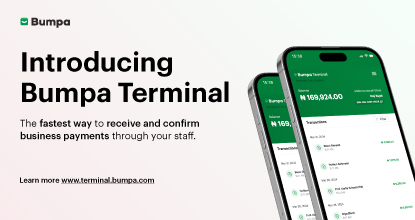
Every Physical Store You Add on your Bumpa Account Now Has Its Own Terminal Account. Here's Why It Matters

Features
Grow Your Business Faster with Loans: Say Hello to Bumpa Capital!

Features
How to Stop Staff Theft in Your DMs and Your Physical Store Using Bumpa

Tips
Business Name Ideas - How to Generate One + 42 Examples

Entrepreneurship
Bumpa vs Wix: A Guide for Nigerian Business Owners

Entrepreneurship
Bumpa vs Paystack Storefront: Which Is Right for Your Business?

Entrepreneurship
Bumpa vs Flutterwave Store: What Nigerian Sellers Actually Need to Know
Entrepreneurship
7 Marketing Tools You Can Use on Bumpa To 5x Sales. (Free & Paid 2026)

Spotlight
From a Mom's Shop Floor to 10K Orders: How Harjoke Fabrics Automated Sales with Bumpa
Features
Bumpa Wallet Is Here: A Faster Way to Get Paid Instantly, Grow Your Money & Stay in Control

Spotlight
For our One of One, Teejay…

Entrepreneurship
8 Best Paystack Storefront Alternatives Nigeria (2026)

Sales
How to Start an Online Business in Kenya (2026 Complete Guide)

Features
Bumpa POS: A Simple Point of Sale System for Businesses in Nigeria

Entrepreneurship
How Bumpa Helps Business Owners Adapt To Nigeria’s New Tax Laws in 2026

Sales
5 Reasons Why Your Business Isn't Making Money (And How To Fix It)
Features
Selling Internationally: Start Collecting Foreign Payments with Bumpa’s Multi-currency Feature!

Features
How to Get Started on Bumpa: An Onboarding Guide.

Tips
10 Small Business Ideas you can start with 20,000 in Nigeria in 2026
Tips
How to Collect Customer Reviews and Boost Sales With Them In 2026

Tips
How to File CAC Annual Returns Online in 2026 as a Business Owner

Entrepreneurship
Happening Live: 30 Days of Bumpa with Kelvin! (Plus 3M Up for Grabs)!
Features
What’s New This Month for Your Business (November 2025)

Entrepreneurship
Share Your Story, Win ₦500,000: Bumpa Business Story 2025
Features
Bumpa Product Updates: What’s New This Month for Your Business (October 2025)
Features
Your Store, Your Way: Introducing Bumpa Website Extensions

Tips
Black Friday Coupon Code Ideas (2025): 27 Proven Promos + How to Name, Cap, and Track Them

Communities
"We Don't Do Impossible" - Celebrating CX Week at Bumpa

Tips
How to Create Professional Invoices for Small Businesses with an Online Invoice Generator
Tips
How to Create & Start an Online Store in Nigeria in 2024
Features
How to Use the Bumpa App: The Ultimate Guide For Small Business Management
Features
Recover More Sales With Bumpa’s New Automated Abandoned Order Reminders
Tips
Black Friday 2025: The Business Guide to Deals That Triple Your Sales

Spotlight
Ronbee Signature: The Entrepreneur who Ditched the Idea of Being A Professor to Become A Jewelry & Perfume Connoisseur.
Spotlight
How Melira Fits Started From A One-Bed Apartment to Doing Up To 15 Million in Revenue.
Features
Get Amazon-Level Delivery for your Business with Bumpa’s New Shipping Automation

Tips
How Businesses (Small and Big) Are Making Big Money with AI in 2025! (Here's How)

Tips
How to Make Money on the Internet in 2025 (12 Easy E-commerce Hustles That Actually Pay)

Tips
These 7 Business Finance Mistakes May Cost You Millions !

Tips
6 Bumpa Websites Designed With New Themes to Inspire Your Online Store
Features
The Ultimate Guide to Managing Your Multiple Stores for Your Business with Bumpa

Features
How to Set Up Google Analytics for Your Bumpa Website
Tips
These 5 Urgent Fixes Will Save Your Dying Online Store!
Entrepreneurship
Be Part of Something Big: Join Our Partners' Program To Help Businesses Go Digital with Bumpa!

Tips
How to Write Product Descriptions that Convert Online Shoppers + Examples & Template

Features
Introducing Brand New Professional Website Themes & Templates For Your Bumpa Store!

Entrepreneurship