Tips
How to Switch to Bumpa Before Black Friday (Without the Risk)
Tips



Ready to switch before Black Friday?
Don't wait until the last minute to find out your system can't handle the rush. Sign up on Bumpa, import your products in minutes, and give yourself time to test everything before your sale goes live. 💚
Black Friday is one of the biggest sales seasons for any business in Nigeria, and you see it everywhere, even large brands like Jumia, Konga, and other household names rolling out amazing discounts. So business owners like yourself are likely deep in Black Friday season too, thinking through discounts, planning bundles, maybe even eyeing a massive price cut on your bestsellers.
If that's you, this article was written specifically for you.
But here's the thing, you're probably also watching everyone else prep their Black Friday sale while you're stuck with a system that's already let you down once this year. Maybe it crashed during your last sale, maybe your stock count was wrong at the worst possible moment, maybe you just know, deep down, that it won't hold up under real pressure. And now you're terrified that switching platforms this close to Black Friday will make things worse, not better.
We're going to talk about everything you need to know, how to plan the perfect Black Friday sale, and exactly how to switch to a platform like Bumpa safely, with time to spare, so Black Friday becomes as easy and stress-free as it should be.
Is it actually safe to switch platforms right before Black Friday?


Yes, it's safe, but it also depends on why you're switching in the first place.
Maybe you're dealing with constant inventory issues. Maybe you feel trapped by your current payment setup. Or maybe you're just looking for something that lets you handle shipping and delivery properly, without having to constantly chase dispatch riders or argue with dispatch companies, and we all know that comes with its own headache entirely.
Whatever your reason, switching close to Black Friday is actually a lot more common than you think. Plenty of merchants do it every single year, and it works out just fine, as long as you're not doing it the night before your sale goes live, because that's how you end up with a whole lot of problems you did not sign up for.
The real risk you should be concerned about was never "switching platforms." The real risk is switching with no plan and no time to actually test whatever platform you've chosen, especially before your customers start showing up ready to buy. That's a special kind of stress, and honestly, it's one you want to avoid completely.
So the question you should be asking yourself isn't "is switching risky?" It's "have I given myself enough runway to do this properly?" Follow the steps in order, have this properly planned out, and you'll be perfectly fine.
As a general rule, give yourself at least 1 to 2 weeks before your sale starts. That's enough time to switch, set up, test, and actually breathe before Black Friday hits.
How long does it actually take to move to Bumpa?

How long it takes you to move to Bumpa depends solely on the method you choose and how fast you move.
Some parts of the move require you to spend a few minutes setting up the details yourself. For example:
Selecting your payment method: choosing how you want to get paid, bank transfer, Bumpa Terminal, card, whichever fits your business
Setting up your storefront details: your store name, logo, and basic info
And some of the more hectic parts of the move can actually be done automatically. For example, adding your products. Instead of adding products one by one, head to Products → Actions → Import, and you'll be asked, "How would you like to import your products?" From there, you get four options:
Import from Other Platforms: if you're moving from Shopify or WooCommerce, pick your platform and continue from there.
Upload CSV with AI: got a messy spreadsheet that doesn't quite match any format? Upload it as-is, and Bumpa's AI will detect and adjust the data to fit, up to 90% accuracy. There's even a tutorial video linked on the page if you want to see it in action first.
Upload CSV: if your data is already clean, download Bumpa's template, fill in the required fields (the optional ones can stay blank), and upload it. This one also works for updating products you've already added, not just first-time setup.
Import from Bumpa: moving products between your own Bumpa stores or locations? Export from the original dashboard and re-import here.
Whichever route you pick, click Continue, and you can track exactly how it went under Products → Actions → Import History, file name, how many products succeeded, how many failed, image upload status, all of it. One thing worth knowing upfront: images tend to take a little longer to finish uploading, so don't panic if your products show up before their photos do.
But the best part is this: once you sign up and open your Bumpa dashboard, you'll see a list of recommended actions to help you get your store up and running, so you're never sitting there wondering what to do next, or in what order.
What you need before you start switching
I know your first instinct is going to be "just add the products and go," but trust me, a little prep now saves you a proper headache later, especially when you're trying to do this while also planning your actual sale. Here's everything you need, sorted the way you'd actually tackle it.
Before you touch anything on Bumpa
Export everything you can from your old store: products (with images), customer list, order history, discount codes, and your policy pages (returns, shipping, FAQs). Products matter most here, since that's the one Bumpa imports directly.
Decide on your domain, but don't connect it yet. Only do that once your new store is fully ready, since it redirects your live traffic the moment you switch it over.
Pick a cut-over date, and give yourself real breathing room before Black Friday, not the night before. You'll need time for test orders, checking shipping and payments, and fixing anything that didn't import cleanly.
Have your payout details and business documents ready. Payments and verification will ask for this, and there's a KYC Tiers section under your profile that may affect your payment limits depending on your verification level.
Once you're in, the account basics
Choose your plan, and actually check what it includes before you migrate. Staff slots, extra locations (each comes with room for 1,000 products), and things like product export vary by plan.
Fill in your store information: business name, tagline, description, phone number, address, currency, and business hours. Your dashboard will keep nudging you for this anyway, so you might as well knock it out early.
Set up your payments and bank details, since this is what determines where your money actually lands (your Bumpa Wallet).
Add your staff accounts and any extra locations if you sell from more than one place.
Set your taxes, if that applies to you.
Getting this foundation right before you start adding products means the rest of the move goes a lot smoother, and honestly, a lot faster too.
How to move your products and stock to Bumpa (step by step)

Alright, this is the part you've probably been waiting for, actually getting your products onto Bumpa. Let's walk through it together, step by step.
Step 1: Clean up your product file first
Before you import anything, make sure your product names, prices, stock counts, and weights are consistent. Weights especially matter here, if you plan to use automated shipping later, Bumpa needs a weight for every product to calculate delivery costs, and your dashboard will actually flag products missing this.
Step 2: Import your products
Head to Products → Actions → Import. You'll be asked how you'd like to import, and you get four routes to choose from:
Import from Other Platforms, if you're coming from Shopify or WooCommerce
Upload CSV with AI, for messy spreadsheets you want Bumpa to clean up for you
Upload CSV, using Bumpa's standard template, ideal if your data is already clean
Import from Bumpa, for moving products between your own Bumpa stores
Pick whichever fits your situation, then click Continue.
Step 3: Check your Import History
Once your file's uploaded, go to Products → Actions → Import History to see how it went, how many products made it in successfully, how many failed, and whether your images are still uploading (they tend to take a little longer, so don't panic if photos aren't showing up right away).
Step 4: Spot-check your work
Don't just assume everything imported perfectly, pick 10 to 20 products at random and actually check them. Prices correct? Variations showing properly? Stock counts accurate? Images attached? Catching an error now is a lot less stressful than catching it mid-sale.
Step 5: Recreate your collections and bundles
Here's one worth knowing upfront: collections and bundles don't come across in the import, you'll need to recreate these manually under Products → Collections / Bundles.
Step 6: Set your stock rules
Under Products → Settings, set up your low-stock alerts, decide whether to show stock counts or out-of-stock items publicly, and add minimum or maximum order quantities where they apply.
Step 7: Connect your payment methods
Finally, head to your payment setup and connect how you'll actually get paid, bank transfer, Bumpa Terminal, card, whichever combination fits your business, so you're not scrambling to sort this out once orders start coming in.
And that's it, your products are in, your stock is set, and you're one big step closer to being fully ready.
How to make sure you don't lose orders or customers during the switch

Now let's talk about the second fear sitting quietly in the back of your mind, "what if my customers show up and my store just... isn't there?"
Here's how to avoid that entirely. Don't connect your domain to Bumpa until your new store is completely ready, tested, and stocked. Your old store should stay fully live and functional right up until the moment you're ready to flip the switch, there's no reason for your customers to ever experience a gap where nothing exists.
When you are ready, time your actual cutover for a genuinely low-traffic window, late at night or early morning, not the middle of a Tuesday afternoon when people are actively browsing. Once you switch your domain over, keep your old store up and accessible for a few extra days too, just in case something needs a second look.
And don't just switch and disappear, let your customers know. A simple post or message saying "hey, we've upgraded our store, here's what's new" keeps people in the loop instead of confused. The goal here is simple: nobody should notice the switch happened, except that everything suddenly works better.
What to do in the final 48 hours before your sale goes live

This is it, the home stretch. With 48 hours to go, here's exactly what to run through:
Place test orders yourself. One paid fully online, one partly paid, and one for every shipping method you offer. Refund or cancel them once you've confirmed they work.
Confirm the money actually lands. Check that your Wallet reflects the payment and that your notifications come through properly.
Double-check your stock numbers. Make sure what's showing on your storefront actually matches what you have, this is not the week for a stock surprise.
Confirm your low-stock alerts are switched on. You want to know the moment something's about to sell out, not find out from a customer.
View your store on your phone. Check the cart, checkout flow, and that images are loading properly, most of your traffic is coming from a phone, so this matters more than checking on desktop.
Confirm your payment methods are live and working, not just added, actually tested.
If you want the full breakdown of everything else to prep for the big day itself, we cover it in detail in our Black Friday survival guide.
Run through this list properly, and by the time Black Friday actually arrives, you're not scrambling, you're just watching the orders come in.
While you're at it, this is also a good time to load in your actual Black Friday offers, if you haven't already, here's how to name, cap, and track your discount codes properly.
The bottom line
The thing is switching platforms right before your biggest sale sounds risky, but staying on a system that's already let you down once? That's the actual risk. You already know what it feels like when things go wrong mid-sale, don't relive that this Black Friday.
If you're ready to make the move, properly, with time to spare, start your 14-day free trial with Bumpa today.
You already know what it feels like when things go wrong mid-sale, don't relive that this Black Friday. If staff mismanagement or stock discrepancies were part of what pushed you to switch, here's how to stop staff from stealing your stock once you're set up properly on Bumpa.
Frequently Asked Questions
Is it safe to switch business platforms right before Black Friday?
Yes, as long as you give yourself enough runway, ideally 1 to 2 weeks, to properly set up, test, and iron out any issues. The real risk isn't switching itself, it's switching last minute with no time to prepare.
How long does it take to migrate my store to Bumpa?
It depends on the method you choose and how fast you move. Some steps take just minutes, like setting up payments, while others, like adding products, can be done in bulk through Bumpa's import tools rather than one by one.
Will I lose my product data if I switch to Bumpa?
No. You can import your products directly, whether that's from Shopify, WooCommerce, a CSV file, or even another Bumpa store. Just remember to clean up your product details beforehand and spot-check your import afterwards.
Can I switch to Bumpa if I only have a few days before my sale?
It's tighter, but possible, if you move fast and prioritise the essentials: products, payments, and stock, first. That said, giving yourself more runway always makes for a smoother, less stressful switch.
Related Articles
View Related Articles Here

Features
How to Use Advanced Settings on Bumpa Loyalty

Features
How to Activate Loyalty Points Feature on Bumpa

Features
Grow Your Revenue & Customer Retention With the New Loyalty Points Feature on Bumpa

Spotlight
Think Business Loans Are Stressful? Nineteenth Shoes Clears Up 5 Myths and Tells Us How Bumpa Capital Helped

Spotlight
Meet Tayo Adejumo, The Business Owner Paid 4 Years of Bumpa Upfront in 2022. Here's Why

Tips
5 Best Inventory Management Software for Small Businesses (Online & Physical Retail Stores)

Tips
How to Switch to Bumpa Before Black Friday (Without the Risk)

Entrepreneurship
How to Separate Your Business and Personal Finances [2026 Guide]

Spotlight
The Extra Mile: Celebrating Customer Service Week 2026 at Bumpa

Features
8 Things You Can Automate on Bumpa So Your Business Runs While You Rest

Features
How to Set Up TikTok Pixel on Bumpa | Step-by-Step Guide

Features
Collect the Birthday & Gender Information of Your Customers Through Multiple Ways on Bumpa.

Entrepreneurship
How to Get Paid Faster: The Complete Guide to Business Payments in Nigeria & Kenya

Tips
How to Choose the Right Payment Options for Your Customers in 2026

Features
How to Set Up Facebook Pixel on Bumpa | Step-by-Step Guide

Entrepreneurship
How to Build a Good Inventory Management System (Step-by-Step)
Tips
How to Keep Daily Records of Sales for Your Business Easily
Tips
How to Detect, Deal with & Prevent Fake Bank Alerts for Your Business

Sales
How Gift Cards, Product Bundles, and Add-Ons Can Help You Make More Money Per Order on Bumpa

Entrepreneurship
Pezesha & Bumpa Partner to Empower Merchants with Digital Business Tools

Features
What Happens When My Bumpa Subscription Expires?

Entrepreneurship
How to Track Profit for Your Business in Nigeria in 2026

Tips
7 Signs You Need Inventory Management Software In 2026

Entrepreneurship
How to Prepare Your Business for Black Friday (2025): A Simple 10-Step Plan With Checklists and Templates

Entrepreneurship
Black Friday Marketing Strategy In 2026: 7-Day Plan for Small Businesses

Tips
When to Restock Inventory: Reorder Point Guide for Nigerian Businesses in 2026

Entrepreneurship
Inventory Management for Fashion & Clothing Business in Nigeria [2026]

Tips
6 Ways to Stop Staff From Stealing Your Stock (Without Losing Trust in Your Team)

Tips
Instagram Business Account Disabled? Here's Exactly What to Do in the Next 24 Hours (2026 Guide)

Entrepreneurship
From One Blender to 25 Branches and Counting: How FruityLife Manages Its Business with Bumpa

Features
New on Bumpa: The July Updates That Make Running Your Business Easier

Features
Create Emails That Drive Sales with Bumpa's Sales Email Template

Features
June Bumpa Product Update: Here's what's new!

Tips
8 Things To Do Before You Launch Your Online Store In 2026

Tips
10 Ways to Get more Customers & Increase Sales for your Business

Tips
Top 5 Online Selling Platforms & Sites in Nigeria (2026 Guide)

Tips
How to Optimise your Bumpa Website for more Visibility on Google in 2026!

Entrepreneurship
How To Start A Bag & Accessories Business In Nigeria In 2026

Tips
When to Upgrade Your Bumpa Plan And How to Know You're Ready

Entrepreneurship
10 Signs Your Business Needs Better Structure and Organization In 2026

Entrepreneurship
Bumpa vs WooCommerce: Is "Free and Powerful" Actually Free for Nigerian and Kenyan Businesses?

Entrepreneurship
Bumpa vs Shopify: Which Platform Actually Works Best For African Businesses?

Features
How to Improve SEO for Your Bumpa Website in 14 Steps

Features
Is the Bumpa App Free? (2026 Update: What’s Free, What’s Paid & What You Get)

Entrepreneurship
How to Use Social Media to Drive Sales to Your Bumpa Store In 2026

Entrepreneurship
25 Small Business Ideas in Kenya with Low Capital (2026 Guide)

Features
Every Physical Store You Add on your Bumpa Account Now Has Its Own Terminal Account. Here's Why It Matters

Features
Grow Your Business Faster with Loans: Say Hello to Bumpa Capital!

Features
How to Stop Staff Theft in Your DMs and Your Physical Store Using Bumpa

Tips
Business Name Ideas - How to Generate One + 42 Examples

Entrepreneurship
Bumpa vs Wix: A Guide for Nigerian Business Owners

Entrepreneurship
Bumpa vs Paystack Storefront: Which Is Right for Your Business?

Entrepreneurship
Bumpa vs Flutterwave Store: What Nigerian Sellers Actually Need to Know

Entrepreneurship
7 Marketing Tools You Can Use on Bumpa To 5x Sales. (Free & Paid 2026)

Spotlight
From a Mom's Shop Floor to 10K Orders: How Harjoke Fabrics Automated Sales with Bumpa

Features
Bumpa Wallet Is Here: A Faster Way to Get Paid Instantly, Grow Your Money & Stay in Control

Spotlight
For our One of One, Teejay…

Entrepreneurship
8 Best Paystack Storefront Alternatives Nigeria (2026)

Sales
How to Start an Online Business in Kenya (2026 Complete Guide)

Features
Bumpa POS: A Simple Point of Sale System for Businesses in Nigeria

Entrepreneurship
How Bumpa Helps Business Owners Adapt To Nigeria’s New Tax Laws in 2026

Sales
5 Reasons Why Your Business Isn't Making Money (And How To Fix It)

Features
Selling Internationally: Start Collecting Foreign Payments with Bumpa’s Multi-currency Feature!

Features
How to Get Started on Bumpa: An Onboarding Guide.

Tips
10 Small Business Ideas you can start with 20,000 in Nigeria in 2026
Tips
How to Collect Customer Reviews and Boost Sales With Them In 2026

Tips
How to File CAC Annual Returns Online in 2026 as a Business Owner

Entrepreneurship
Happening Live: 30 Days of Bumpa with Kelvin! (Plus 3M Up for Grabs)!
Features
What’s New This Month for Your Business (November 2025)

Entrepreneurship
Share Your Story, Win ₦500,000: Bumpa Business Story 2025

Features
Bumpa Product Updates: What’s New This Month for Your Business (October 2025)
Features
Your Store, Your Way: Introducing Bumpa Website Extensions

Tips
Black Friday Coupon Code Ideas (2025): 27 Proven Promos + How to Name, Cap, and Track Them

Communities
"We Don't Do Impossible" - Celebrating CX Week at Bumpa

Tips
How to Create Professional Invoices for Small Businesses with an Online Invoice Generator
Tips
How to Create & Start an Online Store in Nigeria in 2024
Features
How to Use the Bumpa App: The Ultimate Guide For Small Business Management
Features
Recover More Sales With Bumpa’s New Automated Abandoned Order Reminders
Tips
Black Friday 2025: The Business Guide to Deals That Triple Your Sales

Spotlight
Ronbee Signature: The Entrepreneur who Ditched the Idea of Being A Professor to Become A Jewelry & Perfume Connoisseur.
Spotlight
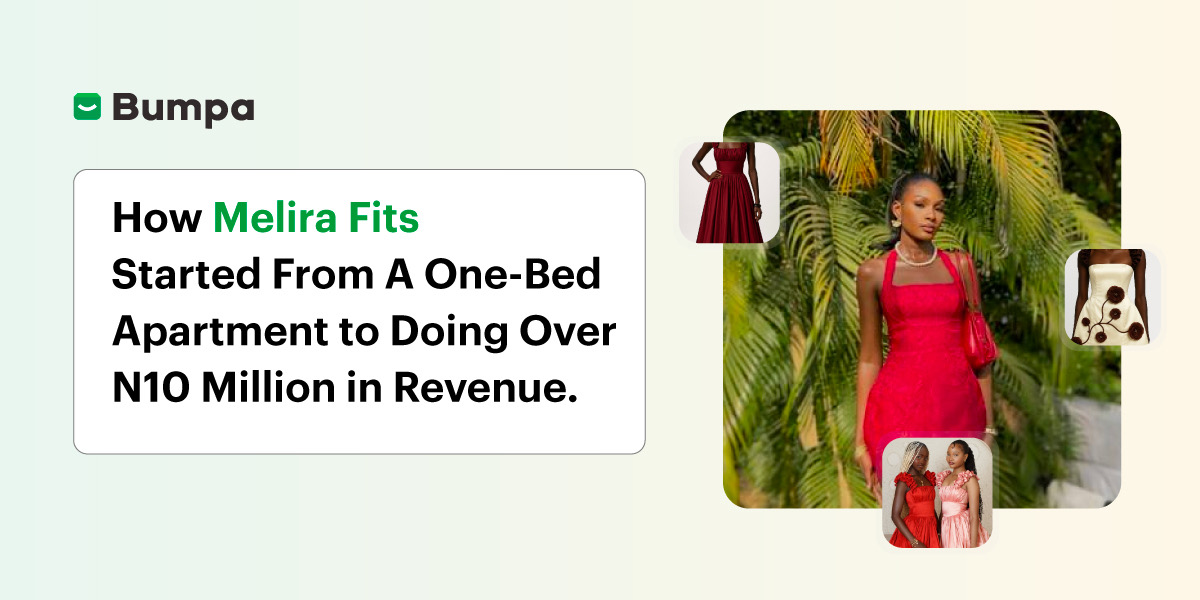
How Melira Fits Started From A One-Bed Apartment to Doing Up To 15 Million in Revenue.
Features
Get Amazon-Level Delivery for your Business with Bumpa’s New Shipping Automation

Tips
How Businesses (Small and Big) Are Making Big Money with AI in 2025! (Here's How)

Tips
How to Make Money on the Internet in 2025 (12 Easy E-commerce Hustles That Actually Pay)

Tips
These 7 Business Finance Mistakes May Cost You Millions !
Tips
6 Bumpa Websites Designed With New Themes to Inspire Your Online Store
Features
The Ultimate Guide to Managing Your Multiple Stores for Your Business with Bumpa

Features
How to Set Up Google Analytics for Your Bumpa Website
Tips
These 5 Urgent Fixes Will Save Your Dying Online Store!

Entrepreneurship
Be Part of Something Big: Join Our Partners' Program To Help Businesses Go Digital with Bumpa!

Tips
How to Write Product Descriptions that Convert Online Shoppers + Examples & Template

Features
Introducing Brand New Professional Website Themes & Templates For Your Bumpa Store!

Entrepreneurship
ShowUp #2: Love is in the Air! (And So Are Sales)

Tips
How to Turn your Products into Irresistible Valentine's Day Gifts

Features
How to Add Shipping Fees on Your Bumpa App
Features
How does Online Payment Work on Bumpa?

Entrepreneurship
The Biggest Business Growth Event (BBGW) of 2025 Is Here!

Tips
Top 8 Trending Products to Launch a Successful Online Business in 2025

Tips
4 Secret Growth Strategies Smart Businesses Are Stealing in 2025

Entrepreneurship